

The Bookmark Editor is a central feature of Bookmer — allowing you to customize nearly every aspect of a bookmark or folder with ease.
How to Open the Editor
The simplest way to access the editor:
Right-click on any bookmark or folder.
Select “Edit” from the top of the context menu.
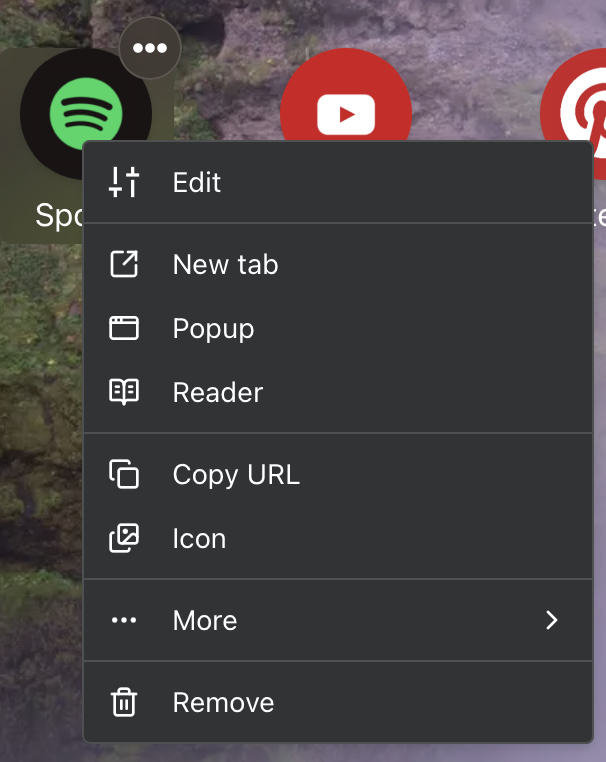
This opens a side panel (Sidebar Editor) that stretches vertically along the entire screen. It’s designed to keep everything in one view — clean and efficient.
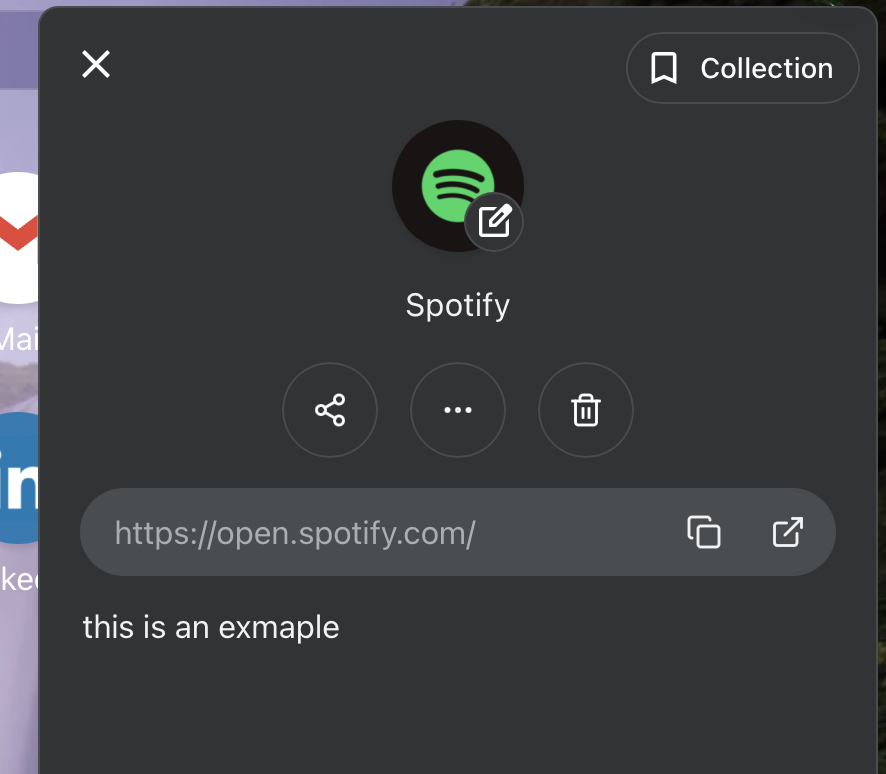
What You Can Do in the Editor?
Change Folder Location
In the top-left corner, you can view and change the folder where the bookmark is stored.
Move it to another folder anytime with just a click.
Minimize or Close the Editor
In the top-right corner, click the minimize icon to collapse the editor.
Alternatively, click anywhere on the free space outside the editor (e.g., your bookmarks area) to automatically close it.
Share the Bookmark
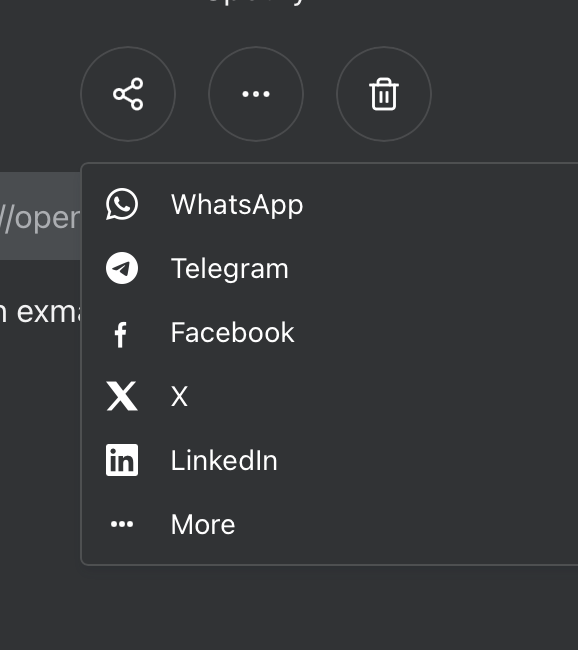
Click the Share icon to open a popup.
From there, you can:
Copy the link
Share via social media
Use native device sharing options
Quick Actions (Center Section)
Click the center dropdown menu to:
Open in a new tab
Open as a popup
Rename the bookmark
Tip: You can also rename directly by clicking on the title text — no need to use the dropdown.
Edit or Remove
Edit the URL
Delete the bookmark if no longer needed
Notes Section
Add custom notes for any bookmark.
These notes are fully searchable via global search — great for saving context, reminders, or annotations.
Add #tags directly within the editor.
Tags help organize your bookmarks and speed up filtering and retrieval.
Customize the Icon
Click the icon at the top of the editor to change the bookmark’s appearance.
Choose from built-in icons, upload your own, or import via URL.
Learn more: